Choose either optional Managed AI with credits and no provider key, or the permanently independent free and bring-your-own-key lane. Then follow the source through import, translation, study, privacy and cost decisions, export, and backup. The sample is original content created for this walkthrough.
The screenshots below were verified with the bring-your-own-key lane in app version 1.0.6 (98) on a disposable iPad simulator · July 2026. Managed AI availability and purchases remain hidden unless the service, account, feature, and store controls are enabled.
Product principle
Keep the source in view.
The app is a source-centered workspace for learning and editorial review. It keeps the photographed page, editable OCR, translation history, references, study tools, and exports together. AI output is a first pass to inspect, not an authoritative interpretation.
Responsible use: compare important wording with the page, inspect references, and consult a qualified teacher or editor for consequential interpretation.
The loop
Nine steps from scan to study.
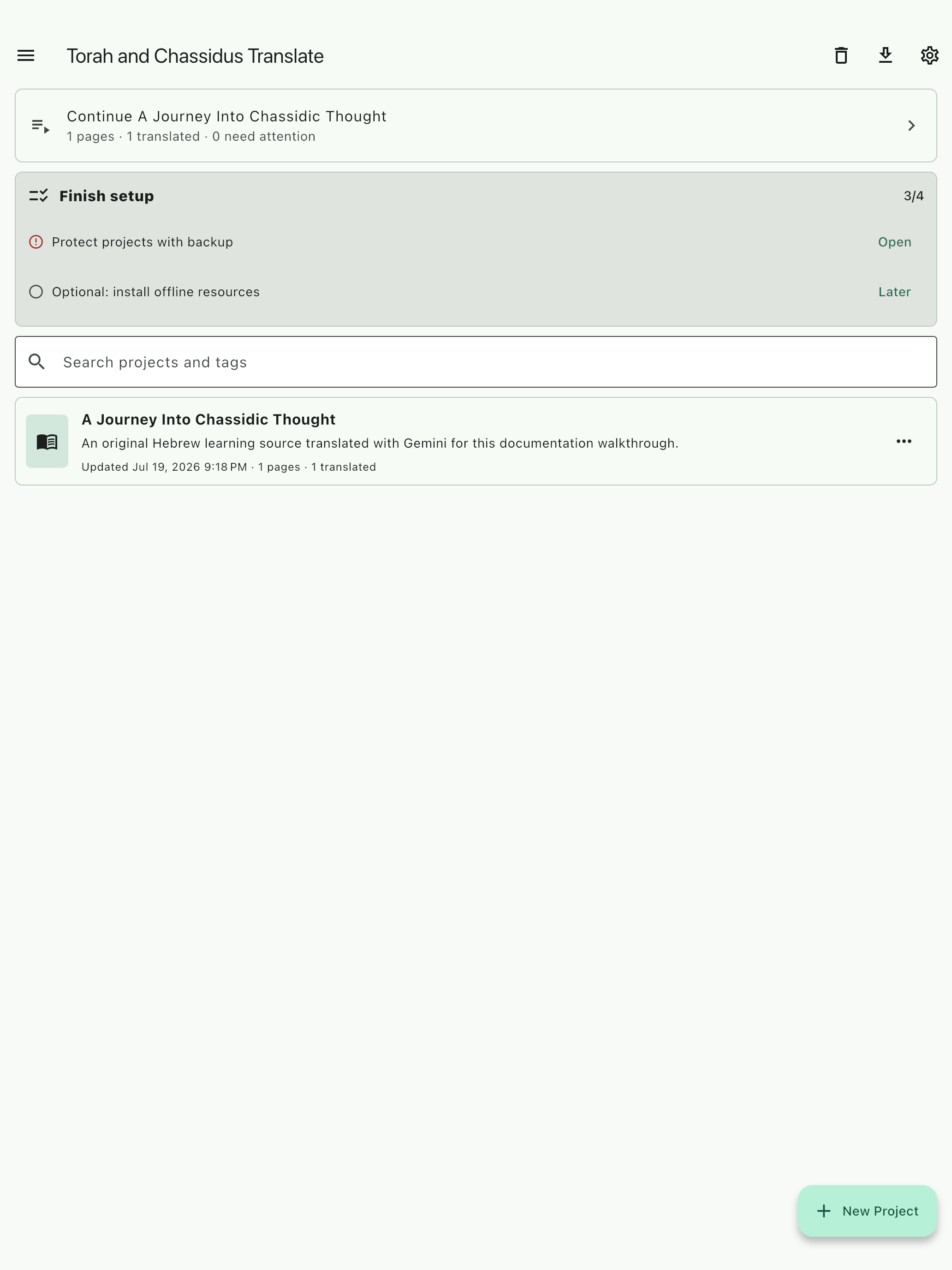
Create one clearly named project for a work, class, or research goal.
Choose Managed AI or bring your own provider key. This choice affects the action you start; it does not convert or lock the project.
Add a camera image, photo, file, or selected PDF pages.
Crop, rotate, and confirm that the entire source is legible.
Choose output language, template, and quality. In the bring-your-own-key lane, also choose the provider and model.
Review the Managed AI disclosure and expected and maximum credits, or review the selected provider's own billing terms, before translating one representative page.
Review image, source text, identity, references, and translation together.
Use Word Lens, Reader, notes, review items, summaries, or project-grounded tutoring.
Export a content-specific document and protect the project with backup.
A named project makes the source, status, and next action easy to find later. Reading, editing, exporting, backup, and local tools do not require a Managed AI purchase.
Two independent lanes
Choose per action; keep ownership of your projects.
Managed AI — no API key needed
When Managed AI is enabled for your account and the selected feature, the app uses a server-selected model and one visible AI-credit balance. Create a verified managed account, inspect the estimate and data disclosure, and confirm the action. The managed provider key never reaches the device.
Managed AI is optional. No public free trial, automatic top-up, automatic overage, or postpaid balance is offered.
Free and bring your own key
Import, read, edit, export, back up, restore, use the Global Library, match the local corpus, and use supported local OCR and text-to-speech without a Managed AI purchase. For cloud translation or tutoring, you may save a supported provider credential in platform secure storage and pay that provider directly.
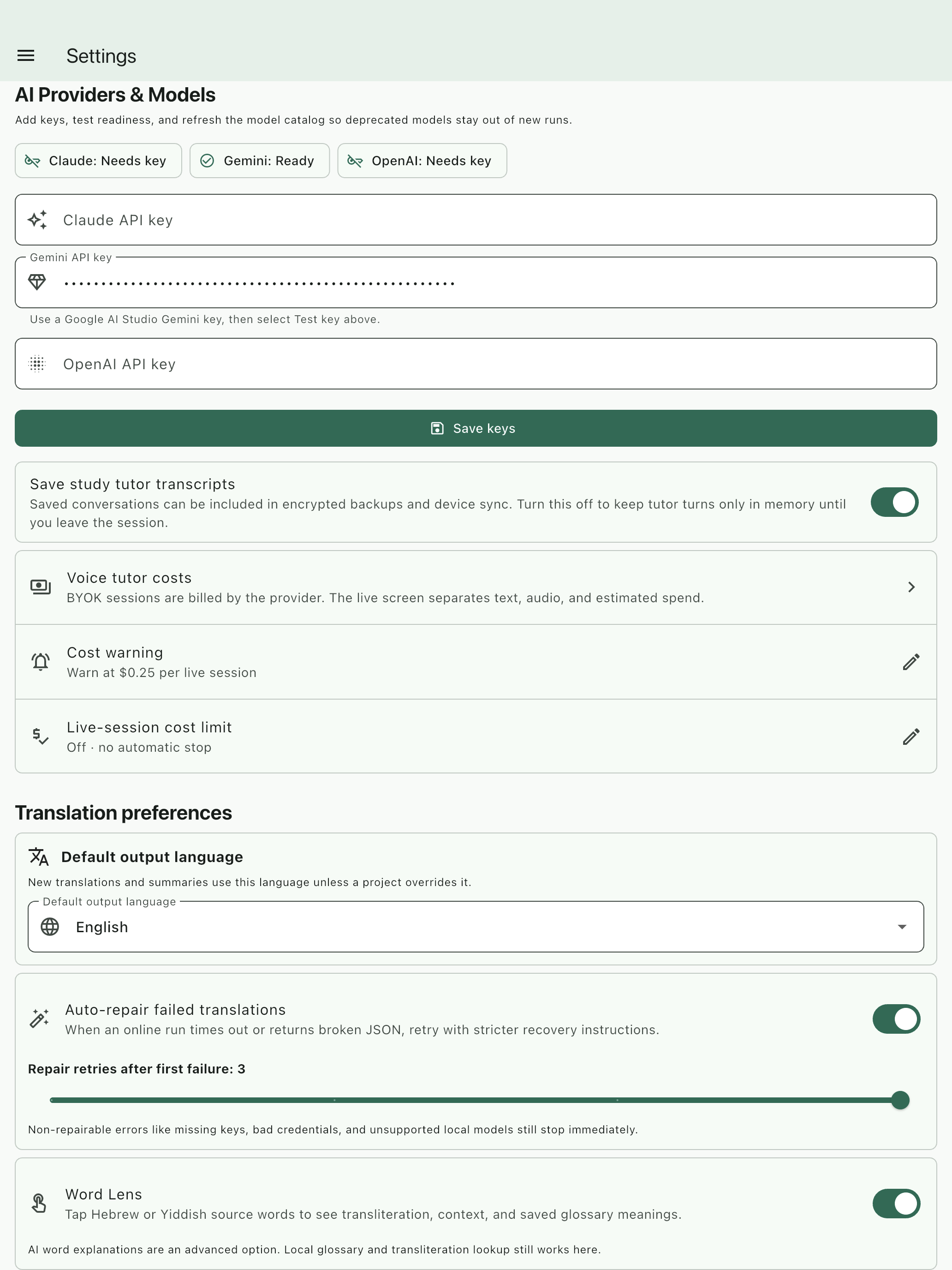
Open Settings → AI Providers & Models, save the credential, and run its readiness test. A Ready state confirms authentication and catalog access; it does not guarantee that every model is enabled or free.
This earlier screenshot demonstrates bring-your-own-key readiness. The key is masked. Never place a key in a prompt, project, export, screenshot, or support message.
No silent switching: the app does not silently move between a user's provider key and Managed AI, and Managed AI is not an implicit provider fallback. Existing keys and projects stay untouched when a managed account is created or canceled.
Create a separate managed account only when you want it.
Select Managed AI — no API key needed during setup or open the Managed AI screen later.
Confirm that the account holder is at least 13 years old. Managed accounts for children under 13 are not supported.
Verify one canonical email address with the short-lived code sent to that address. The app stores rotating managed-session credentials in platform secure storage.
Review the authoritative plan, merchant, available balance, grant breakdown, expiration dates, and feature availability.
Choose a specific managed action. Account creation alone does not upload a project or start provider work.
Commercial identity is separate from Global Library contributor identity unless you explicitly link them. Signing out or deleting the managed account does not delete local projects, provider keys, backups, or exports.
Managed controls fail closed. If accounts, a feature, product visibility, sales, purchase fulfillment, or the required provider is unavailable, the app must say so and leave local and bring-your-own-key work available.
Confirm one customer action
See the data and maximum charge before managed work begins.
Before every paid action, the app identifies the feature, describes what data will leave the device, shows the expected and maximum credits, shows the current balance, and states whether optional repair or enrichment is included. One confirmation covers the action's internal segments and retries; those attempts are not separate customer charges. The final charge cannot exceed the confirmed maximum.
Translation and source correctionManaged: selected page image or bounded source text, language, output settings, and guidance. Alternative: supported BYOK or local translation. Translate missing pages and Re-translate are distinct actions.
AI OCR and source validationManaged: selected image and extracted text. Alternative: platform OCR, installed Tesseract resources, imported text, and manual correction.
Summary, tags, and metadataManaged: bounded project text only when explicitly included in an estimate or started separately. Alternative: manual editing or a supported BYOK provider.
Word Lens contextManaged: the selected word plus nearby context only after Ask AI for context. Alternative: the local glossary, Sefaria, and deterministic ranking.
Text tutorManaged: the question, bounded cited project excerpts, and limited conversation context. Alternative: local reading tools or a supported BYOK tutor.
Realtime voice tutor — BetaManaged: live microphone audio, bounded excerpts, and measured connected time through the protected service; sessions have a hard 10-minute limit. Alternative: text tutor or supported BYOK voice.
Managed narrationManaged: selected text and voice settings in a bounded private audio job. Alternative: device or local text-to-speech, or supported BYOK Microsoft speech.
Formatted-document translationManaged: confirmed encrypted document chunks, page ranges, file and language settings, initially in jobs of at most 100 pages. Alternative: ordinary project translation and export.
A failed, malformed, unsafe, or unusable managed result costs zero credits. Provider retries are absorbed by the service. A completed and validated result retained briefly for replay can be charged even if the device disconnects before receiving it; reopen the action instead of starting a duplicate.
Prepare the source
Import cleanly, then verify identity.
Use sharp, evenly lit pages with complete margins. For large PDFs, preview and select the needed range. The app keeps the original and edited image, while OCR text remains correctable.
ImageNo clipped lines, glare, fingers, blur, or upside-down pages.
OCRParagraph order, names, headings, and quotations match the page.
IdentityA standalone 361 is a printed page. Keep a volume only when Volume, Vol., כרך, or חלק is explicit.
ScopeTest one representative page before a larger or more expensive run.
This walkthrough uses an original Hebrew sample created for documentation, not a copyrighted book page or private user scan.
Authenticated result
Compare the source and translation side by side.
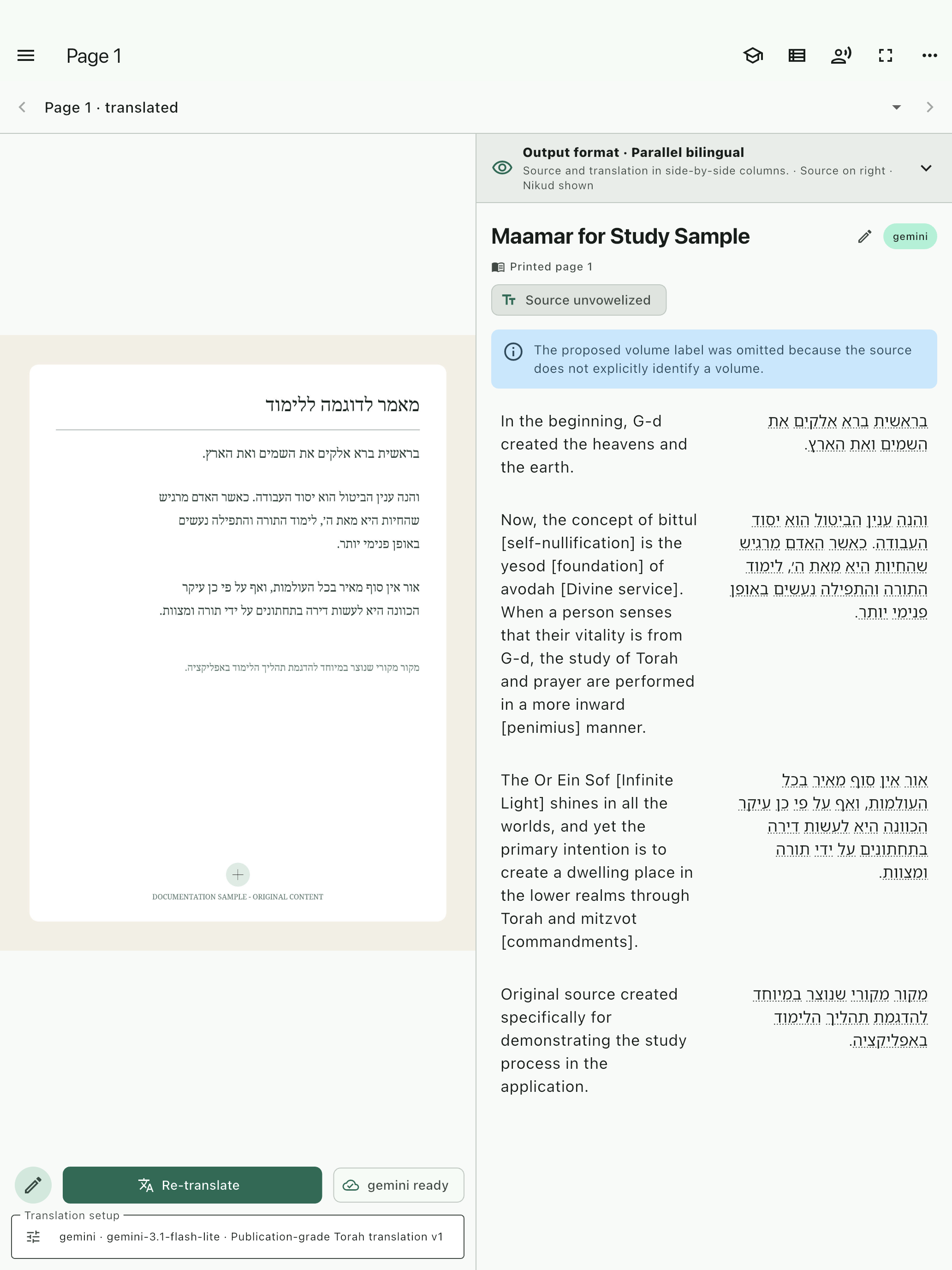
The illustrated test used the production bring-your-own-key image-import and translation path with Gemini. The completed translation was saved and reopened in Parallel bilingual view. Managed results use the same source-centered review surface when that lane is available. Translation history remains distinct when the lane, provider, model, template, OCR, or image changes.
The original page remains visible while the learner reviews page identity, source text, technical terms, and translated paragraphs.
Before marking a page finished
Confirm page and volume labels against explicit evidence.
Check paragraph order, headings, names, quotations, and bottom-of-page text.
Make explanatory additions and transliterations distinguishable from source wording.
Open source references and verify the cited location.
Correct OCR or identity first, then choose Re-translate when the input was wrong.
Educational use
Turn a result into a learning loop.
Word Lens, Reader Mode, speech, summaries, tags, notes, and review items help the learner return to the text. The tutor is most valuable for a focused request grounded in the open project: simplify a paragraph, compare two concepts, point to support on the page, or give a short comprehension check.
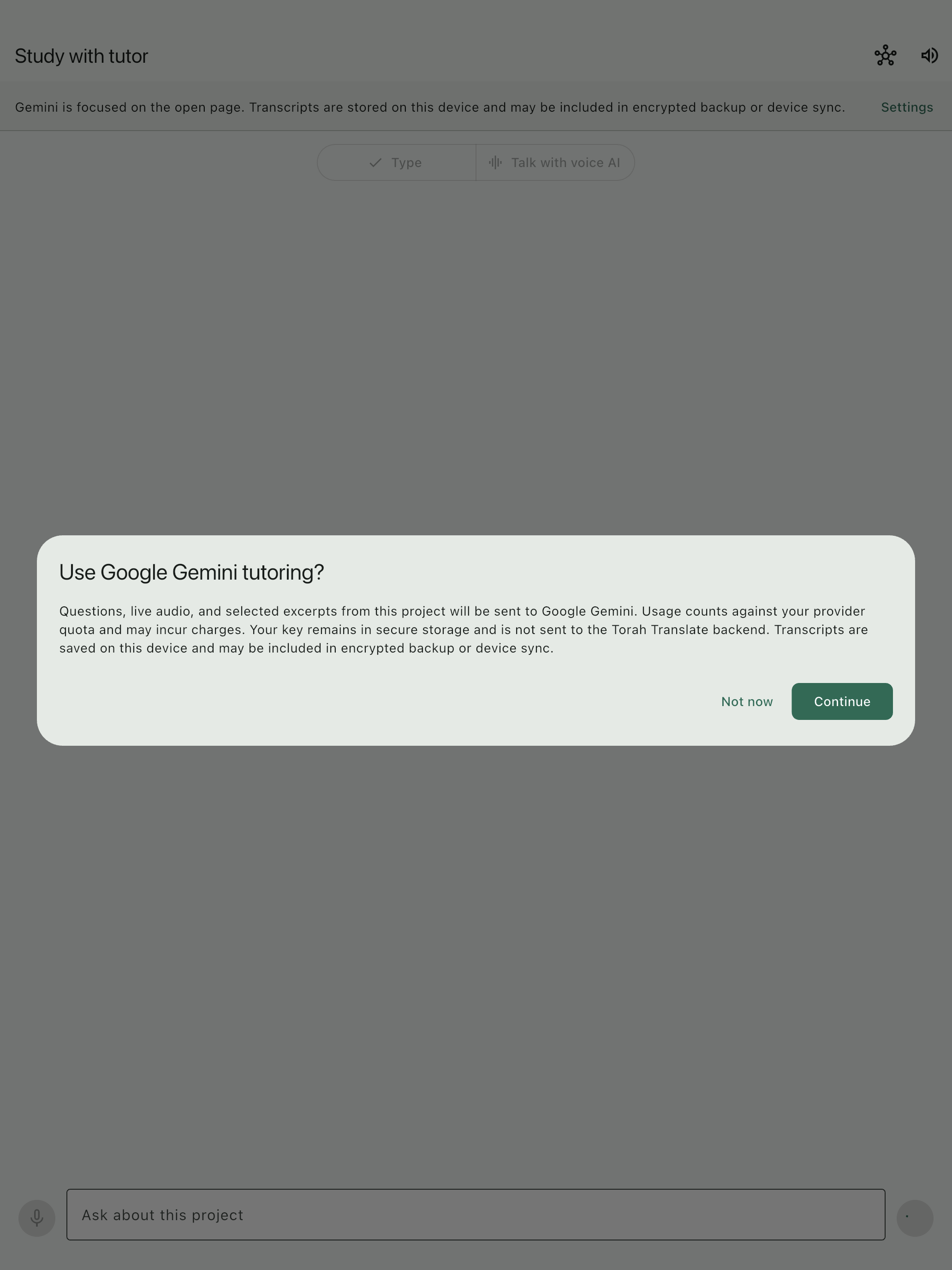
This bring-your-own-key example explains data transfer, provider billing, secure key storage, and transcript behavior. Managed tutoring instead shows its AI-credit estimate and managed-data disclosure before the turn.
Ask the tutor to cite the page, then verify the cited wording in the viewer. Project grounding improves relevance; it does not guarantee correctness.
Know what leaves the device
Cost, privacy, balance, and retention.
Bring your own provider
Required excerpts, prompts, images, or audio go directly to the provider selected in the app. That provider's terms, retention, quota, rate card, and invoice apply. If a paid model has no reliable rate, the app cannot promise that a displayed provider-cost estimate is complete.
Managed AI
Only the data named in the confirmation passes over encrypted HTTPS to Torah Translate and then to the managed processor. The server selects the exact model and prompt version. Managed provider credentials never reach the app, and Torah Translate does not use customer documents to train models.
Balance and history
The Managed AI screen shows total credits, subscription and purchased-pack grants, expiration dates, plan and merchant, approximate examples, and usage history grouped by the customer action rather than internal provider attempts. Subscription grants are spent before pack credits, starting with the soonest expiration.
Credit validity
Each paid monthly subscription grant and each monthly annual-plan tranche is valid for 12 months from issue. Purchased pack credits do not expire while the account exists and remain usable after cancellation. Credits have no cash value and are not transferable.
Temporary content
Raw managed request content is handled in memory where possible. A validated replay result may be encrypted for up to 24 hours. Unclaimed private narration and formatted-document artifacts are removed within seven days and normally within 24 hours after retrieval. Content-free operation metadata is retained for 30 days.
Transcripts and local work
Raw managed microphone audio is relayed in memory and not retained by Torah Translate. Saved tutor transcripts stay on the device and may enter user-controlled backup or sync. Local models reduce cloud transfer but use device storage, memory, battery, and compute.
Confirm the lane every time. A Managed AI credit estimate is not a provider invoice, and a bring-your-own-key provider estimate is not a Managed AI charge. The app must never silently substitute one for the other.
Purchase and manage with the merchant for the installed app.
The US launch has a $12.99 monthly plan with 2,000 credits per paid month, a $139.99 annual plan with twelve monthly 2,000-credit tranches, and optional $4.99/500-credit or $14.99/2,000-credit packs. Prices are before tax; the checkout shown by the merchant is authoritative. Credit packs may be bought only while a managed subscription is active, but unused purchased pack credits remain after cancellation.
iPhone and iPadBuy through Apple in the app when products are available. Use Restore purchases in the Managed AI screen and Apple's subscription-management page to change or cancel the plan.
Mac App StoreUse Apple in-app purchase, restore, and Apple subscription management. The app does not direct a Mac App Store customer to Stripe checkout.
AndroidBuy through Google Play when products are available. Use Restore purchases or refresh the account, and manage or cancel the base plan through Google Play.
Windows and websiteUse secure Stripe Checkout when sales are available. Credits arrive only after the signed webhook is verified, never from the success page. Use Stripe Customer Portal to manage or cancel the plan.
A restored purchase attaches to the verified managed account and shared wallet after the backend validates merchant ownership. Do not buy overlapping subscriptions from two merchants. If the service detects more than one, already-paid grants remain auditable, but further purchases are blocked until the conflict is resolved.
Delete the managed account
Delete immediately from the Managed AI screen or use the public account-deletion page after recent email verification. Deletion stops managed access, revokes sessions, removes temporary AI content, and anonymizes the account while retaining only pseudonymous records required for accounting, fraud, ownership, and refunds. It does not delete local projects or your own provider keys.
Deletion does not cancel merchant billing. First follow the Apple, Google Play, or Stripe management link shown for the active merchant. A later authenticated restore of an active purchase creates a safe new account relationship; it does not resurrect deleted identity or duplicate previously deleted credits.
Output and durability
Export for the next task, then back up.
Reader PDF and Study Reader PDF support reading and learning. Markdown and DOCX support editing. ZIP protects a portable project copy. XLIFF, TMX, CSV, and comparison outputs support specialist workflows where available.
Export names use the project and content identity instead of a generic filename.
Preview title, page order, Hebrew direction, images, and footnotes before distribution.
Configure backup after the first meaningful project. Reinstalling the app is not a backup strategy.
Generated video can contain factual inaccuracies or audio glitches. Verify every claim, interface label, Hebrew crop, and disclosure before publishing.
Evidence
How this walkthrough was verified.
A disposable iPad simulator ran version 1.0.6 (98).
A temporary Gemini credential was stored through the app's secure credential service.
The production import service added an original Hebrew sample image.
The page received verified source text and explicit printed-page metadata.
The production translation service called gemini-3.1-flash-lite.
The app verified and persisted a completed Gemini translation.
The real library, project, page, consent, and masked settings screens were captured.
The credential is not present in the repository, screenshots, public guide, or downloadable documents. Provider model availability and behavior can change after the test date.